How to Clear Phone Storage Without Deleting Photos or Apps
 Aug, 23 2026
Phone Storage Recovery Planner
-
1–5 GBClear App Caches
Removes temporary files from social/streaming apps. -
2–10 GBOffload Unused Apps
Deletes app binary but keeps data for quick reinstall. -
5–20 GBOptimize Photo Storage
Stores low-res copies locally, full-res in cloud. -
2–8 GBReduce System Data
Restart & update iOS to clear logs/backups. -
10+ GBMove Media to SD Card
Transfers DCIM folder to external storage. -
20+ GBExternal Drive Transfer
Move large videos/projects to USB SSD.
Estimated Recovery Report
ReadyCurrent Free Space
--
Potential Savings
--
Projected Free Space
--
Your phone feels heavy, not because of the weight in your pocket, but because the "Storage Full" warning is blinking red. You have 256GB of space, yet it seems like only 10% is left. The panic sets in: do you have to delete your favorite apps? Do you need to offload years of vacation photos? Not necessarily. Most phones are bloated with invisible digital junk that eats up space without adding value to your daily life. Phone storage optimization is the process of reclaiming disk space by removing temporary files, duplicate media, and unused app data while keeping your core content intact. It’s about cleaning the clutter, not emptying the house.
The difference between a sluggish device and a smooth one often comes down to how much free space remains for system operations. When your drive is nearly full, your operating system struggles to write new data, leading to slower app launches and laggy performance. By targeting specific areas of bloat, you can recover several gigabytes without touching a single photo or video file you care about.
Quick Summary / Key Takeaways
- Clear app caches first: Social media and streaming apps hoard gigabytes of temporary data that serves no purpose once viewed.
- Use built-in tools: Both iOS and Android now have native features to identify large files and duplicates automatically.
- Offload, don’t delete: Moving rarely used apps to the cloud frees up space while keeping their data intact for later use.
- Manage media smartly: Compress old videos and move high-resolution originals to external drives or cloud services.
- Check hidden folders: Voice memos, WhatsApp voice notes, and downloaded documents often hide in plain sight.
Why Your Phone Feels Full Even With High Capacity
It’s frustrating to buy a phone with 512GB of storage and feel cramped within six months. This happens because modern apps are data-hungry. A messaging app like WhatsApp isn't just storing text; it’s caching every image, video, and voice note you’ve ever sent or received. If you haven’t cleaned this out, those files remain on your device indefinitely, even if you’ve seen them weeks ago.
Similarly, streaming services like Netflix or Spotify download episodes and songs for offline listening. Unless you manually delete them after viewing, they stay on your internal storage. These aren’t “files” in the traditional sense; they’re cached assets designed for speed, but they accumulate silently. Understanding this distinction is key to clearing space without losing access to your content.
Step-by-Step: Reclaiming Space on Android
Android gives you more control over your files than iOS, which means more power but also more responsibility. Start with the built-in storage analyzer. Go to Settings, then Storage. Here, you’ll see a breakdown of what’s taking up space: Apps, Media, System, and Other. Tap on each category to dig deeper.
- Clear App Caches: Navigate to Settings > Apps. Sort by size. For heavy apps like Chrome, Instagram, or YouTube, tap on the app, then Storage, and select "Clear Cache." Note: This does not delete your login info or saved data; it only removes temporary files. You might reclaim 1-3GB from a single social media app.
- Review Large Files: Use a file manager app (like Files by Google) to search for files larger than 100MB. Often, you’ll find forgotten screen recordings, duplicate videos, or APK installers you never deleted.
- Offload Unused Apps: In the app drawer, long-press an app you rarely use. Select "Uninstall - Keep Data" if available, or simply uninstall it. If you think you might reinstall it soon, know that most games store progress in the cloud, so local data loss is minimal.
- Move Media to SD Card: If your phone supports expandable storage, move your DCIM folder (photos/videos) to the SD card. This keeps your internal storage free for system files and apps, which run faster on internal flash memory.
Step-by-Step: Reclaiming Space on iPhone
iOS manages storage differently. Apple hides many details, but recent versions of iOS have made it easier to spot culprits. Go to Settings > General > iPhone Storage. Wait a moment for the analysis to complete. You’ll see a bar graph showing categories like Apps, Photos, System Data, and iCloud Drive.
- Optimize Photo Storage: Tap on Photos. Ensure "Optimize iPhone Storage" is enabled. This stores lower-resolution copies on your phone and keeps full-resolution originals in iCloud. If you have limited iCloud space, consider downloading originals to a computer and deleting them from your phone, or upgrading your iCloud plan.
- Offload Unused Apps: Scroll through the list of apps. Look for the "Offload App" option next to apps you don’t use daily. This deletes the app binary but keeps its documents and data. When you reinstall it later, your data will be there instantly.
- Check "System Data": This category is often confusing. It includes iOS backups, logs, and temporary files. To reduce it, restart your phone. A simple reboot clears RAM and some temporary system files. If System Data is unusually high (over 10GB), try updating your iOS version, as bugs in older versions can cause bloat.
- Delete Old Voice Memos and Notes: Check your Voice Memos app. People record snippets and forget them. Same with the Notes app-long-form drafts or scanned documents can add up quickly.
The Power of Cloud Backup and External Drives
Clearing space is a one-time fix, but maintaining it requires a strategy. The best way to keep your phone light is to treat it as a processing unit, not a hard drive. Your phone should hold what you need *now*, not everything you’ve ever created.
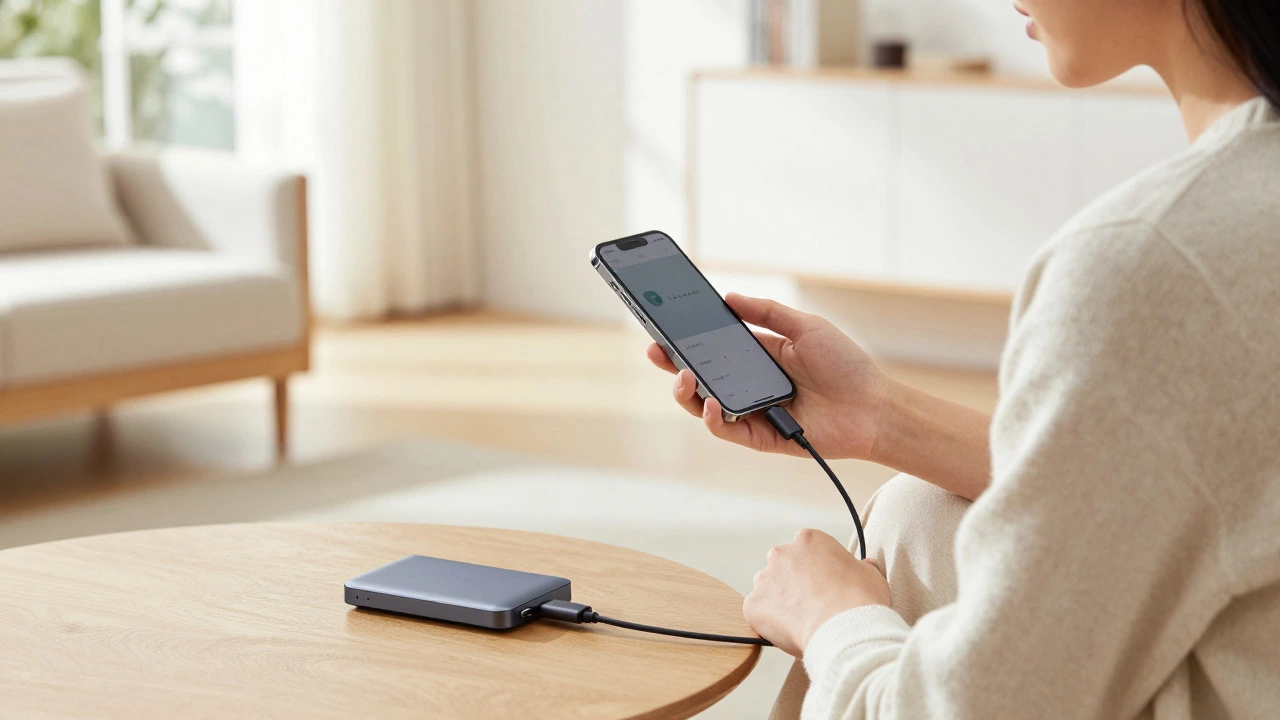
For photos and videos, iCloud Photos or Google One are essential. They sync your library across devices, allowing you to delete local copies safely. But what about massive video projects or raw photo edits? That’s where external storage comes in. USB-C OTG adapters allow you to plug a portable SSD directly into your phone. You can edit videos on the drive, export the final cut, and then eject the drive. This keeps terabytes of media off your internal storage entirely.
| Method | Space Saved | Data Loss Risk | Effort Level |
|---|---|---|---|
| Clearing App Caches | 1-5 GB | Low | Easy |
| Offloading Apps | 2-10 GB | None (Data Kept) | Medium |
| Photo Optimization | 5-20 GB | Low (If Cloud Synced) | Easy |
| External Drive Transfer | Unlimited | None | High |
Common Pitfalls to Avoid
Don’t fall into the trap of deleting things blindly. For example, clearing "App Data" instead of "App Cache" on Android will log you out of your accounts and reset settings. Always read the fine print. Also, avoid using third-party "cleaner" apps unless necessary. Many of these apps themselves consume significant resources and may display ads that distract you from the real problem. The built-in tools provided by Apple and Google are robust enough for 90% of users.
Another mistake is ignoring Wi-Fi-only downloads. If you stream music or video over cellular data, check your app settings to ensure they aren’t downloading full-quality files for offline use when you didn’t intend to. Set automatic deletion for watched shows or listened-to podcasts to prevent silent accumulation.
Maintaining Healthy Storage Levels
Once you’ve cleared the backlog, set up a routine to prevent future bloat. Aim to keep at least 10-15% of your total storage free. This buffer allows your operating system to function efficiently and ensures there’s room for updates. Make it a monthly habit to spend five minutes reviewing your storage usage. On Android, enable "Auto-delete" for screenshots older than 30 days. On iOS, review your Offloaded Apps quarterly to see if any are still needed. These small, consistent actions prevent the dreaded "Storage Full" alert from returning. Your phone is a tool for connection and creation, not a landfill for digital debris. By understanding what takes up space and using the right tools to manage it, you can enjoy a fast, responsive device without sacrificing your memories or favorite apps.
Does clearing cache delete my photos?
No. Clearing cache only removes temporary files used by apps to load content faster. Your personal photos, messages, and login credentials remain untouched. It is a safe operation that typically saves several gigabytes of space.
What is "System Data" on iPhone and why is it so big?
System Data includes iOS backups, logs, Siri voices, and other OS-related files. It’s normal for this to take up a few gigabytes. If it exceeds 10GB, restarting your phone or updating to the latest iOS version usually reduces the size significantly.
Is it better to delete apps or offload them?
Offloading is better if you think you might use the app again. It deletes the app software but keeps your data. Deleting removes everything. If you want to save maximum space and never plan to use the app again, delete it. Otherwise, offload it.
Can I move my entire photo library to an SD card?
On most Android phones, yes. You can change the default camera storage location to the SD card. However, some apps may not recognize photos stored externally. For iPhones, you need a USB-C adapter and a compatible app to transfer files to an external drive, as iPhones do not support SD cards natively.
How much free space should I keep on my phone?
Experts recommend keeping at least 10% of your total storage free. For a 128GB phone, that’s about 12GB. This buffer ensures smooth performance, faster app loading, and successful system updates.